Computer Science Education Week (Dec 7-13): an unplugged coding hour with step order and pattern worksheets
Computer Science Education Week is December 7-13, 2026. It is held each December in honor of Grace Hopper, the computing pioneer born on December 9, 1906. The Hour of Code is now called the Hour of AI, and its organizers say activities work with devices or with none at all.
Many special education and elementary teachers want to take part but are not sure where to start. Some classes have limited device time. Some students do better with paper, pictures, and one step at a time. The good news: two big ideas in computer science are skills many of your students already practice.
- An algorithm is a set of steps in order. That is sequencing: first, next, last.
- Computers find and repeat patterns. That is pattern work: what comes next?
This post shows a simple, no-device plan for that week using printable SkillSprout pages. The pages are plain practice sheets. There are no robots, computers, or holiday pictures on them.
Step 1: Write an algorithm on a First, next, last organizer
The writing organizer maker has a sequence layout with three boxes: First, Next, and Last. There is a Topic / book line at the top. Choose lines for writing, or open space so students can draw each step.
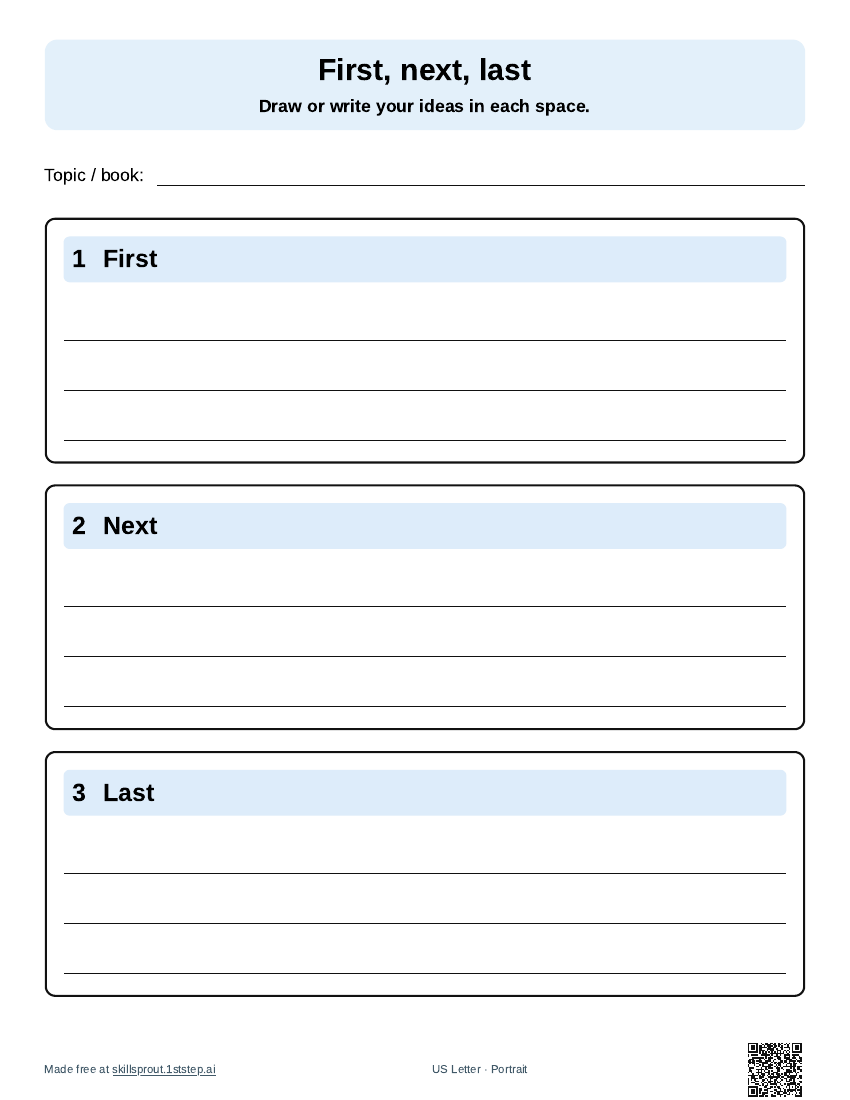
Pick a routine your students know well, such as washing hands, packing a bag, or lining up. Write it on the Topic line. Then:
- Students draw or write one step in each box.
- You (the "computer") follow their steps exactly as written, out loud or with a puppet.
- If a step is missing or out of order, the "computer" gets stuck. Students fix it. That is debugging.
The organizer stays blank. SkillSprout does not fill in the steps or save what students write. Everything is done on paper.
For students who are not ready for three steps, start with two.
Step 2: Two steps with a first / then board
The first / then board maker prints a large two-picture board. You choose both activities from the classroom picture set (Read, Write, Math, Snack, Movement, Break, Tidy up, Pack bag).
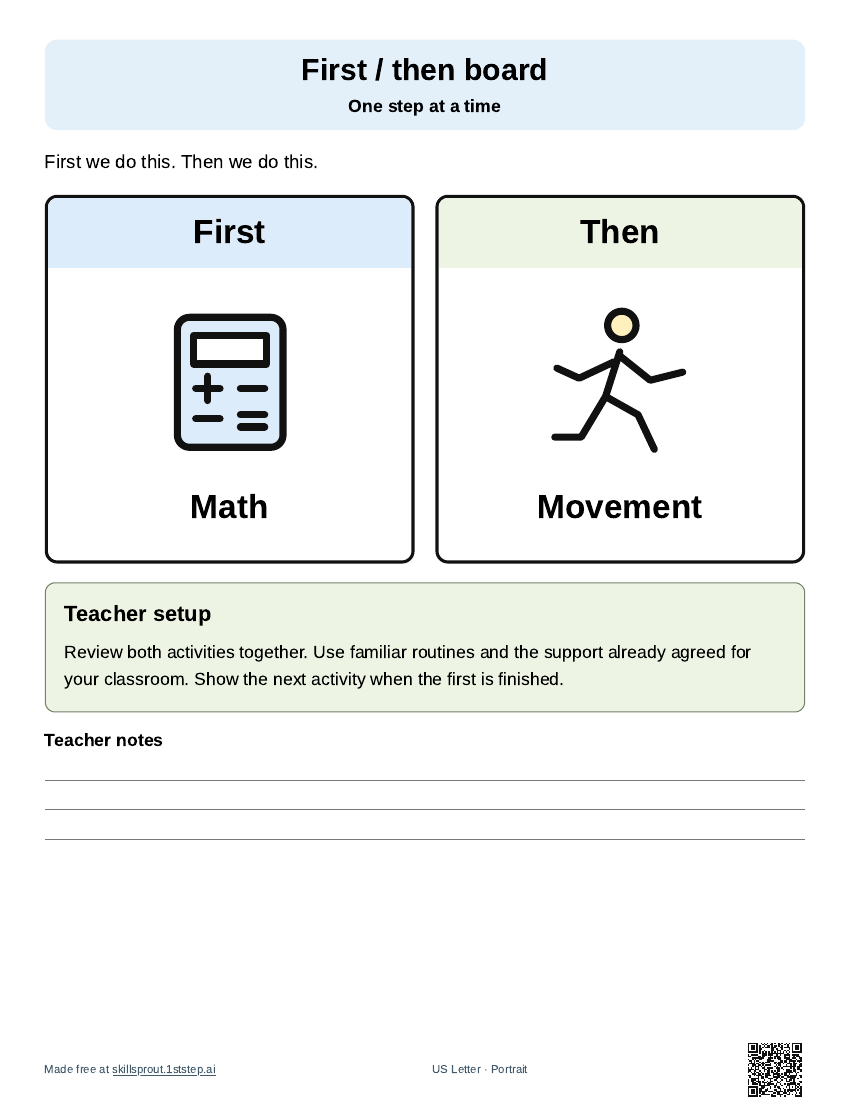
During your coding hour, the board does two jobs. It shows the plan for the session. It also models the idea of an algorithm with the shortest possible program: do this, then do this. Ask, "What happens if we switch them?" to talk about why order matters.
Step 3: Pattern practice (what comes next?)
Pattern work is a natural partner for a coding week. Here are two pattern sheets with answer keys.
Grade 4: continue a repeating pattern
The Grade 4 Essential Element M.EE.4.OA.5 reads: "Use repeating patterns to make predictions." The Grade 4 repeating pattern worksheet shows a shape-word pattern and asks what comes next.
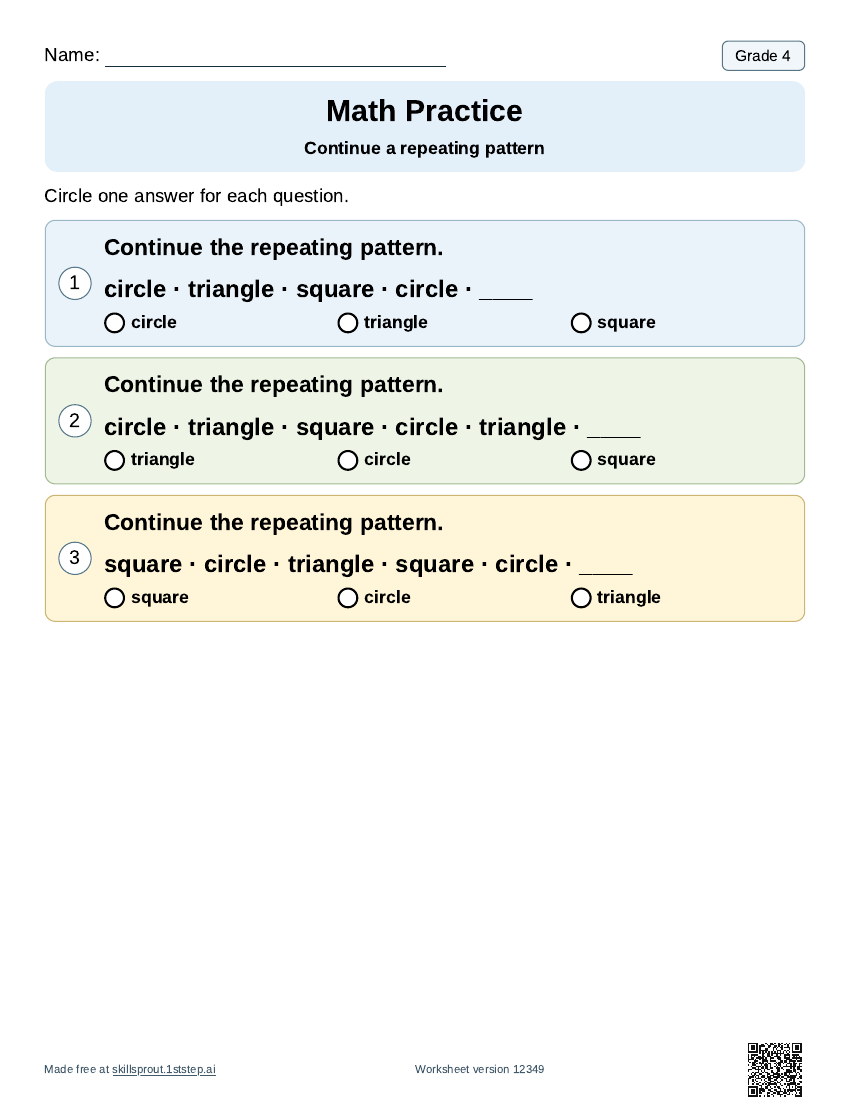
In this version, the answers are triangle, square, and triangle. The answer key prints on its own page.
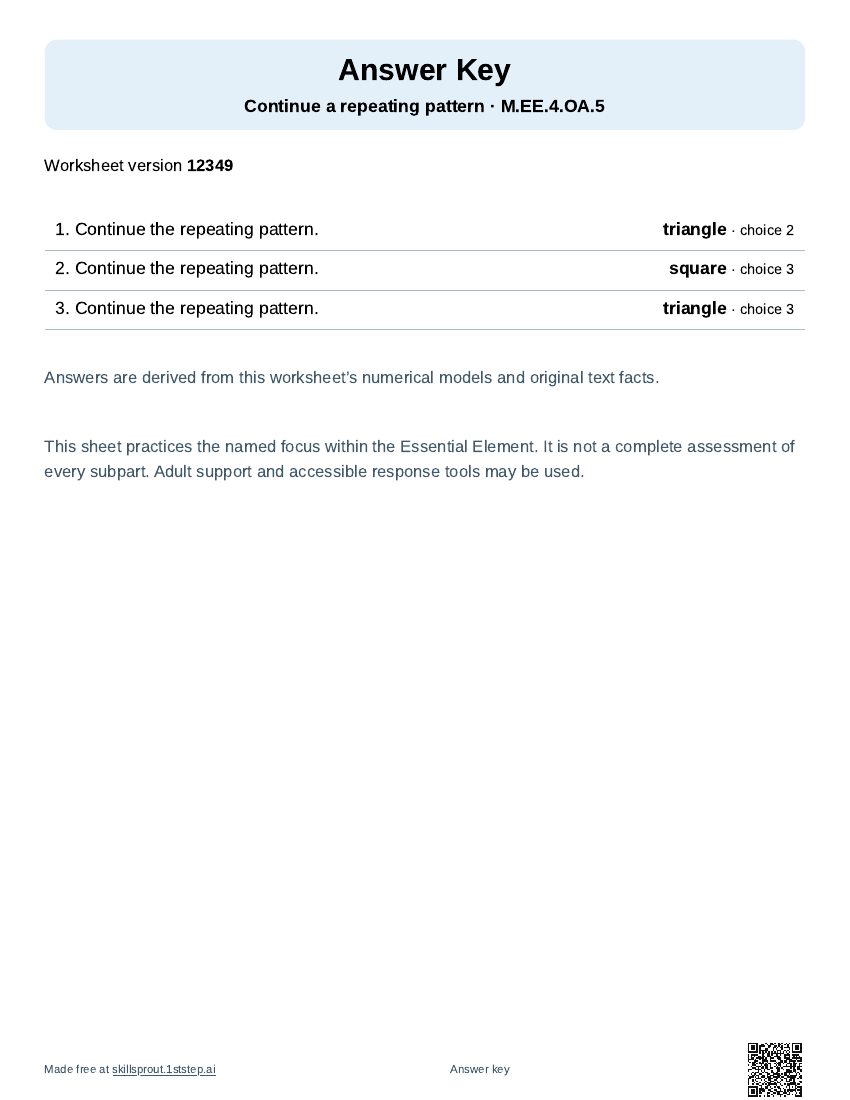
A quick tip: before you print, check that each pattern shows at least one full repeat plus one more item, like circle, triangle, square, circle. Then students have enough to see the rule. If a pattern is too short, type a different number in the studio's Worksheet version box, generate again, and check the preview.
To make it hands-on, have students build each pattern with real blocks or paper shapes first, then circle the answer.
Grade 3: continue a number pattern
The Grade 3 Essential Element M.EE.3.OA.9 reads: "Identify arithmetic patterns." The Grade 3 arithmetic pattern worksheet shows three numbers and asks which number is next.
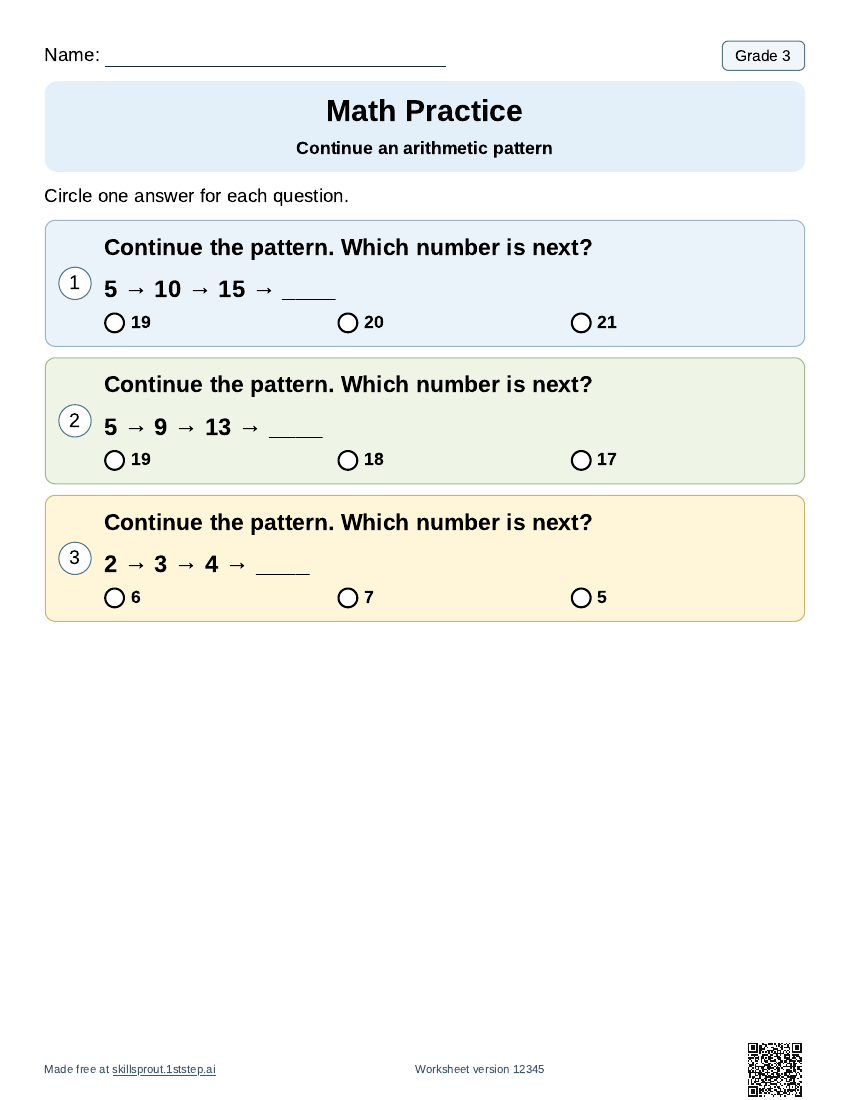
In this version, the patterns are 5, 10, 15 (add 5), 5, 9, 13 (add 4), and 2, 3, 4 (add 1). The answers are 20, 17, and 5.
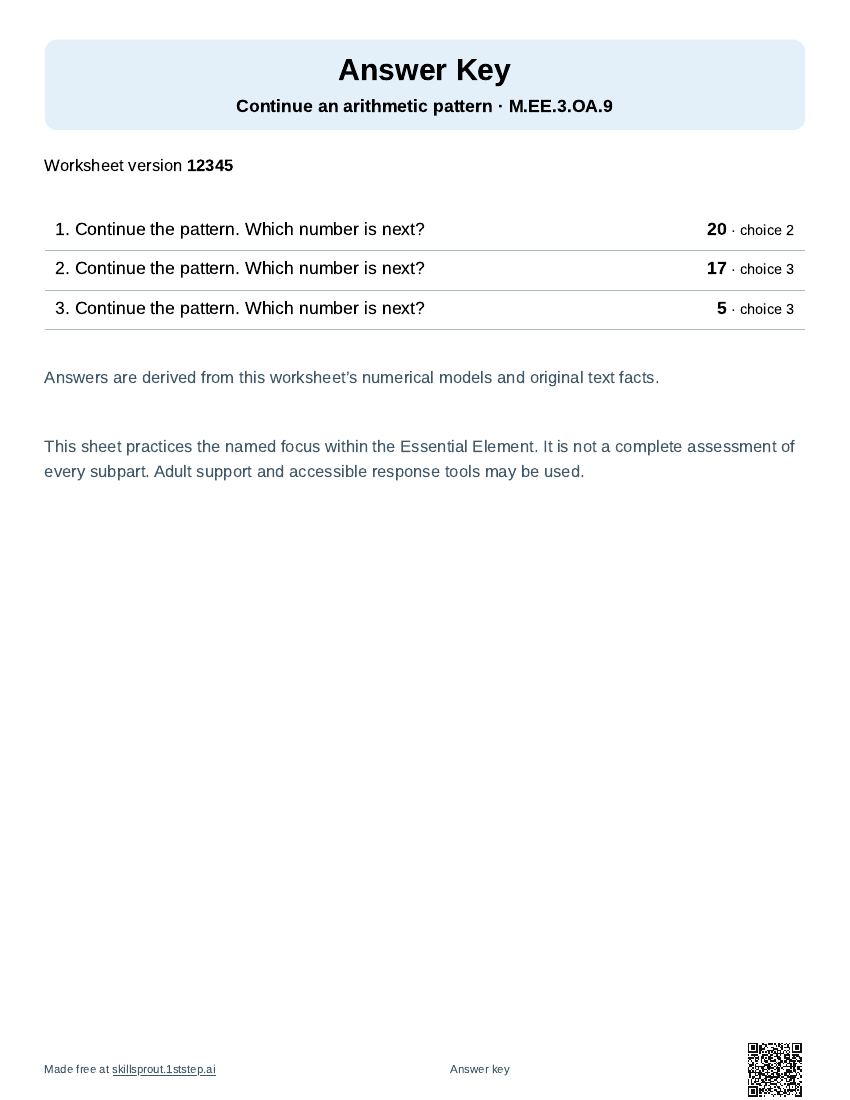
Talk about it like a computer would: "What is the rule? Add 5. Run the rule one more time." Students in Grade 5 can use the Grade 5 number pattern worksheet, and younger students can start with find the next number.
A 45-minute unplugged coding plan
- 5 minutes: Show the first / then board for the session. Say: "Today we are computer scientists. Computers follow steps in order."
- 15 minutes: Model one routine on the First, next, last organizer. Then students make their own. Follow their steps exactly and let them debug.
- 15 minutes: Pattern sheet at each student's level. Build patterns with objects first if that helps.
- 10 minutes: Movement pattern game: clap, stomp, clap, stomp. What comes next? Let students make the pattern for the class.
You can split this into shorter sessions across the week. If your class also does a device-based Hour of AI activity, these pages work well as a warm-up the day before.
Making it work for every student
- Use open-space organizers for students who draw or use picture symbols.
- Let students answer by pointing, eye gaze, or their AAC device. The multiple-choice sheets have three large answer bubbles.
- Cut the organizer boxes apart and have students put the steps in order before gluing.
- Use the answer keys to check quickly and decide which skill to repeat in January.
How to make these pages
- Open the SkillSprout studio. The studio uses Google sign-in. The worksheet and tool pages linked above are public to browse.
- For the pattern sheets, search for repeating pattern or arithmetic pattern, pick the grade, choose write-in or multiple choice, and press Generate Worksheets.
- For the organizer, open Teacher tools, choose Writing organizer, pick First, next, last, and choose lines or open space.
- For the board, open Teacher tools, choose First / then board, and pick two activities.
- For the tools, press Create printable. Check every preview, then print or download the PDF.
No student names or information are needed to make any of these pages.