After Thanksgiving break: retell the break with a story map, plus story order and story element worksheets
Thanksgiving is Thursday, November 26, 2026. Most schools close for at least two days, and many classes come back on Monday, November 30. A "what did you do over break?" share is a familiar first-day-back routine. It is also a real retelling task: who was there, where you went, what happened, and how it ended.
For a lot of students in special education, that question is hard to answer on the spot. A blank story map gives the retell a shape before anyone has to talk or write. SkillSprout can print that map, plus two short reading sheets that practice the same skills with a printed story: putting events in order and naming story elements.
These are plain practice pages. There are no turkeys or holiday pictures on them.
A blank story map for the retell
The writing organizer maker has four layouts. The Story map layout has four boxes: Who?, Where?, What happened?, and How did it end? There is a Topic / book line at the top. With open space, students can draw in each box instead of writing.
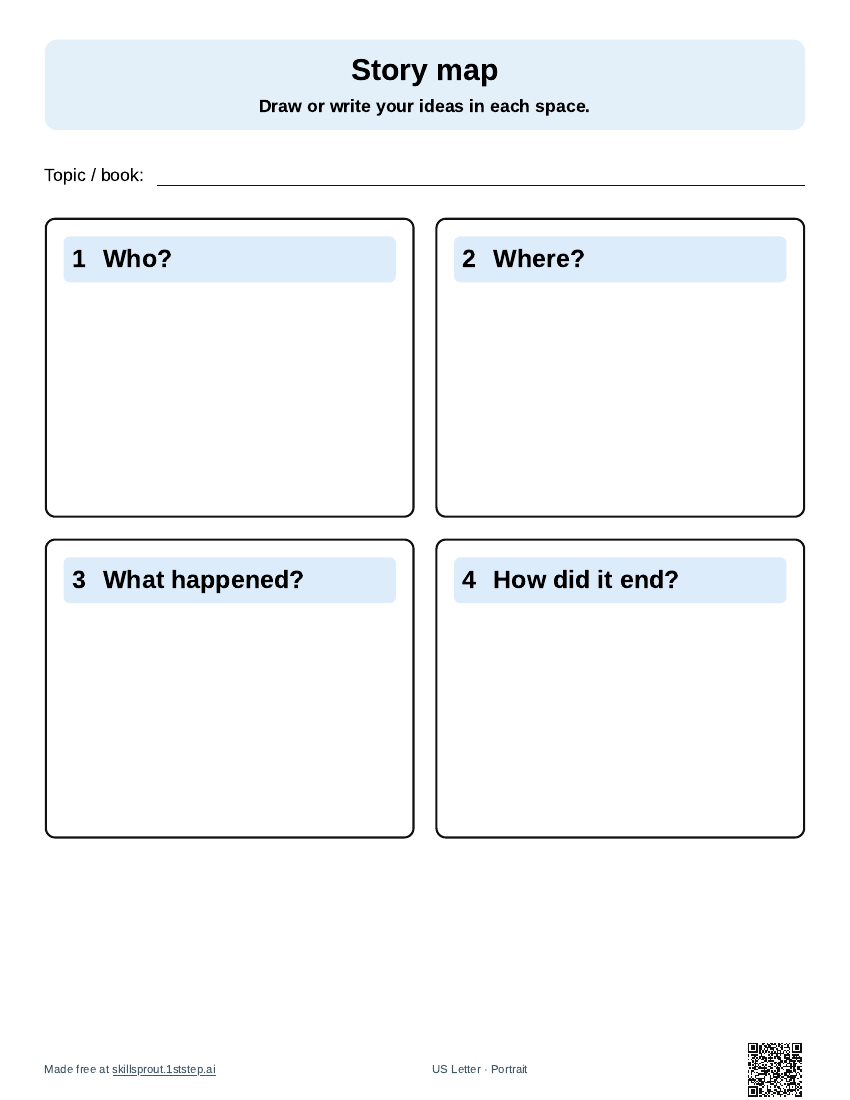
The same map also prints with writing lines in each box.
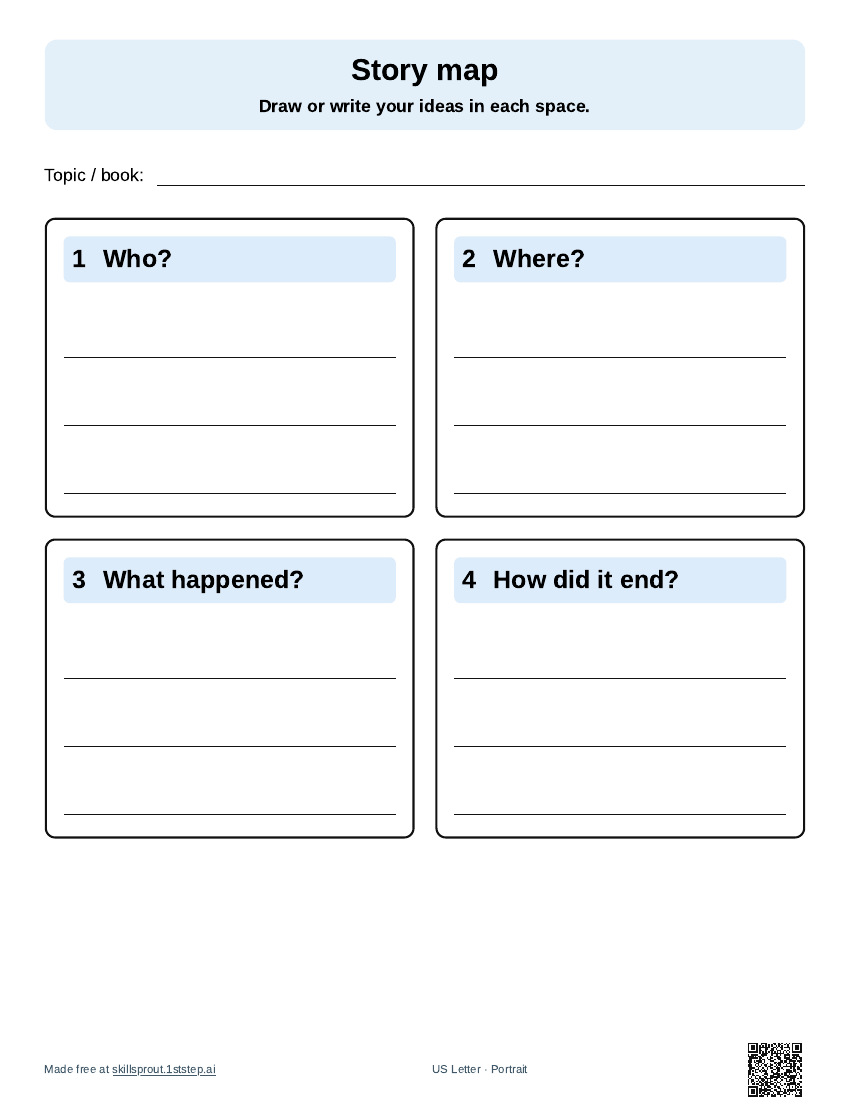
The organizer stays blank. SkillSprout does not fill in the boxes, add a sample answer, or save what students write. Students or staff complete it on paper.
Not every student has a break they want to talk about. Let students choose: a day of the break, a show or game they liked, or a story the class read. The Topic / book line works for any of these.
Grade 1: what happened first, next, and at the end?
The Grade 1 Essential Element ELA.EE.RL.1.2 reads: "With guidance and support, recount major events in familiar stories." The Grade 1 order story events worksheet prints a short story and asks what happened first, next, and at the end.
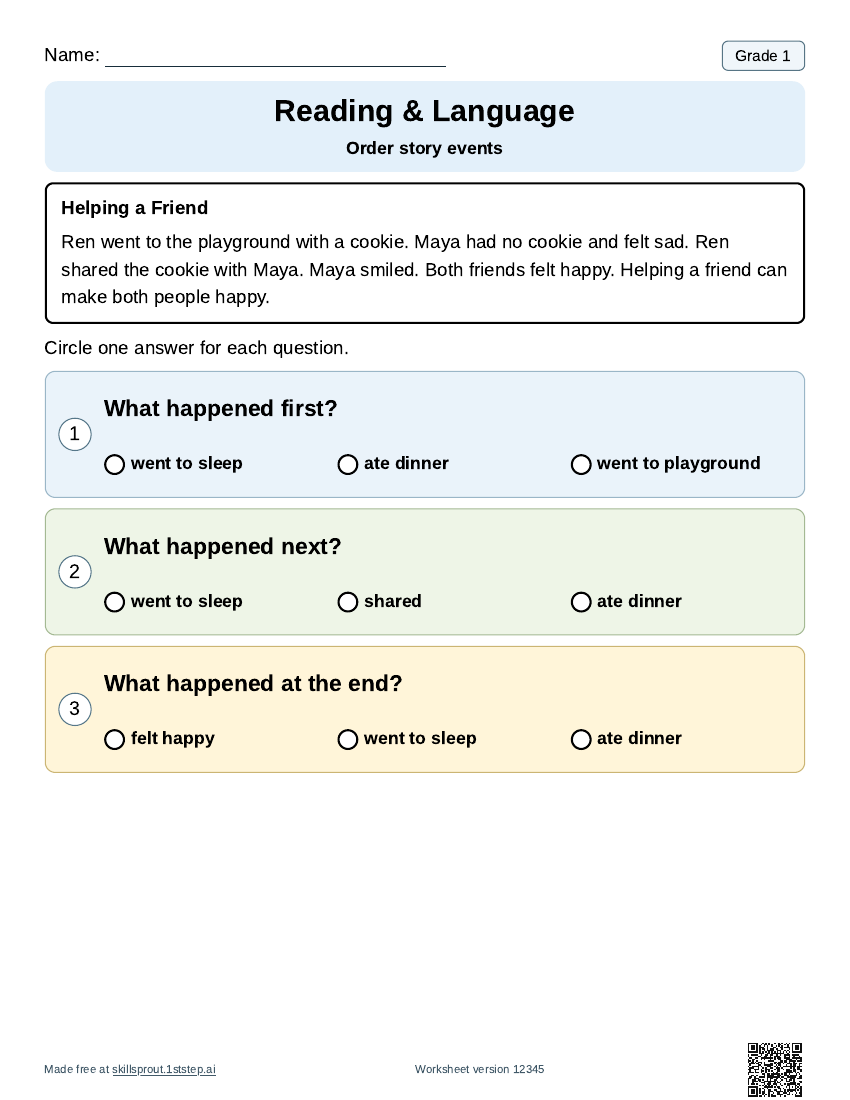
In this version, the story is about Ren sharing a cookie with Maya. The answers are went to playground, shared, and felt happy. The answer key prints on its own page after the student page.
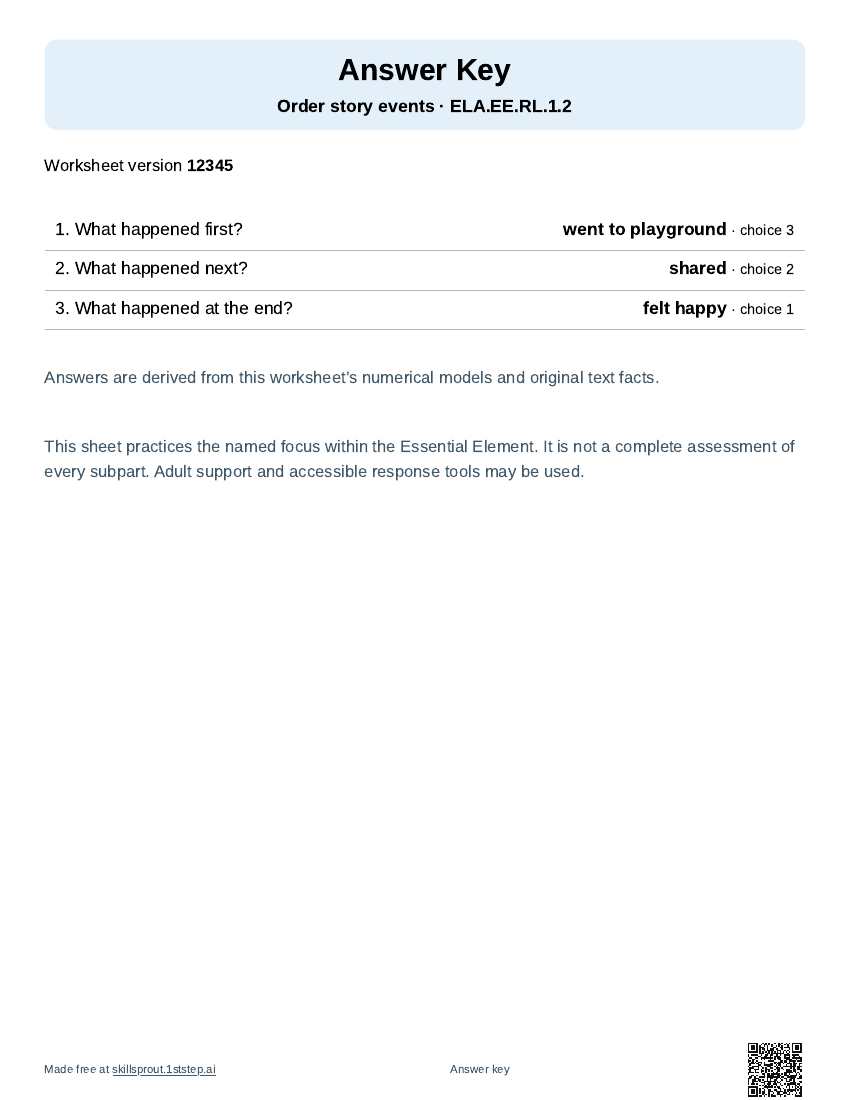
Do this sheet first, then use the same three words on the board for the break retell: First, Next, At the end.
Grade 4: who, where, and what happened in a story
The Grade 4 Essential Element ELA.EE.RL.4.5 reads: "Identify elements that are characteristic of stories." The Grade 4 story elements worksheet asks students to find a character, the setting, and a story event.
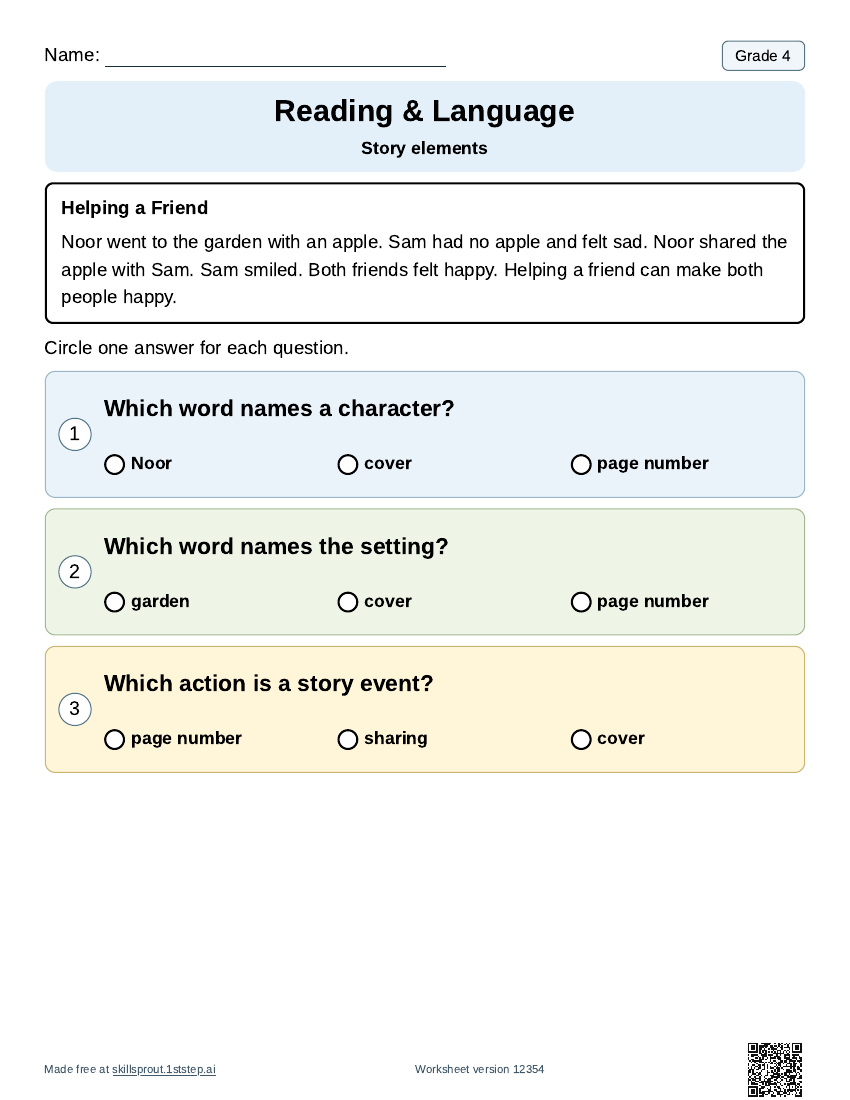
These three questions line up with the first three boxes of the story map: Who?, Where?, and What happened? Students practice with a printed story, then use the same questions for their own retell.
A simple plan for the first day back
- Print the story map before break so it is ready on Monday.
- Start with one of the reading sheets so the words first, next, character, and setting are fresh.
- Model one story map yourself, then let students draw or write their own.
- Let students share from their map, or just point to one box.
- Keep the answer keys with you to check the reading sheets quickly.
How to make these pages
- Open the SkillSprout studio.
- For the reading sheets, search for order story events or story elements, pick the grade, and choose write-in or multiple choice.
- For the story map, open Teacher tools, choose Writing organizer, pick Story map, and choose lines or open space.
- Press Create printable, then print or download the PDF.
Worksheets do not need a login or any student information. Each page stays in your browser until you print or download it.